On this page
Client space guide.
This page explains, screen by screen, how your team uses its agent in the client space. Each step is short and illustrated. Looking for the developer documentation? It is on the API and SDK page.
Are you a developer? Open the API and SDK documentation.
1. Sign in
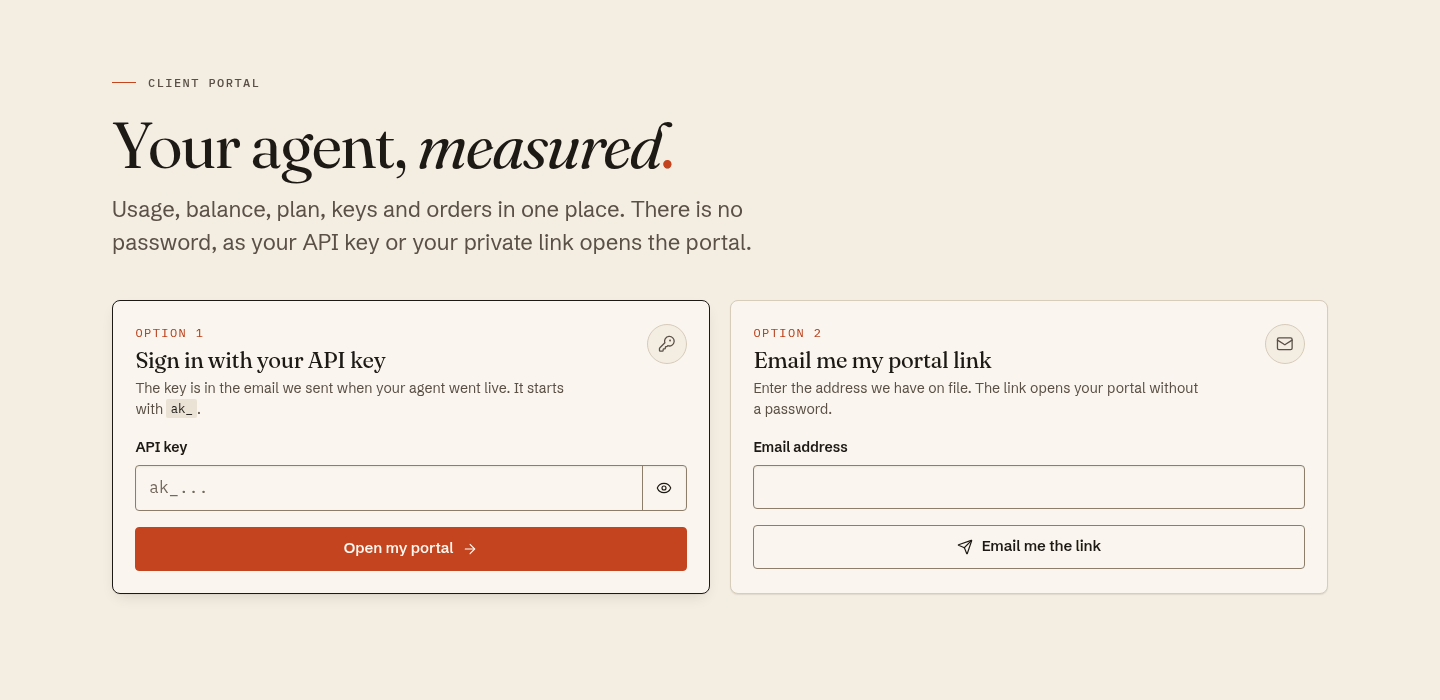
There is no password. You have two ways into the client space.
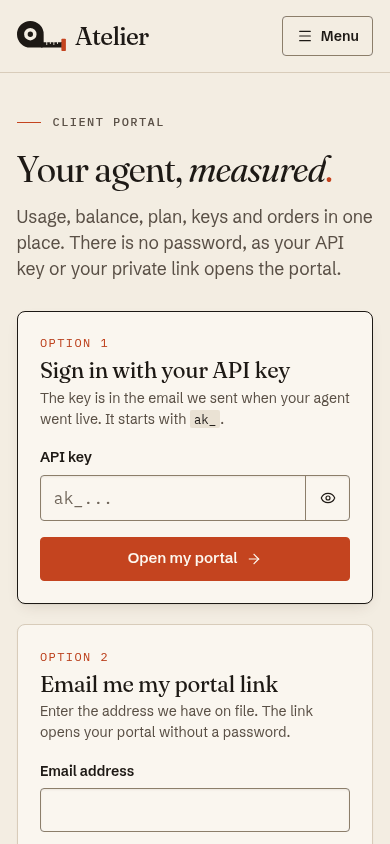
First way, the key. Paste the key you received at set-up into the field, then click "Open my portal". The small eye shows or hides the key. A key always starts with ak_.
Second way, the private link. Type your email address and ask for the link. A message arrives with a personal link that opens your space directly. The answer is the same whatever address you type. If nothing arrives, write to us (see "Get help").
If you bought an agent outright, you have no key. Use the private link from your payment email, or the second way.
Good to know
- Your firm or company shares one space. The whole team uses the same key or the same link.
- "Sign out" closes the space for everyone who is signed in.
- The session ends by itself after a while. Just sign in again.
- After several wrong keys, access is blocked for a few minutes.
Never share your private link outside your team.
2. The dashboard
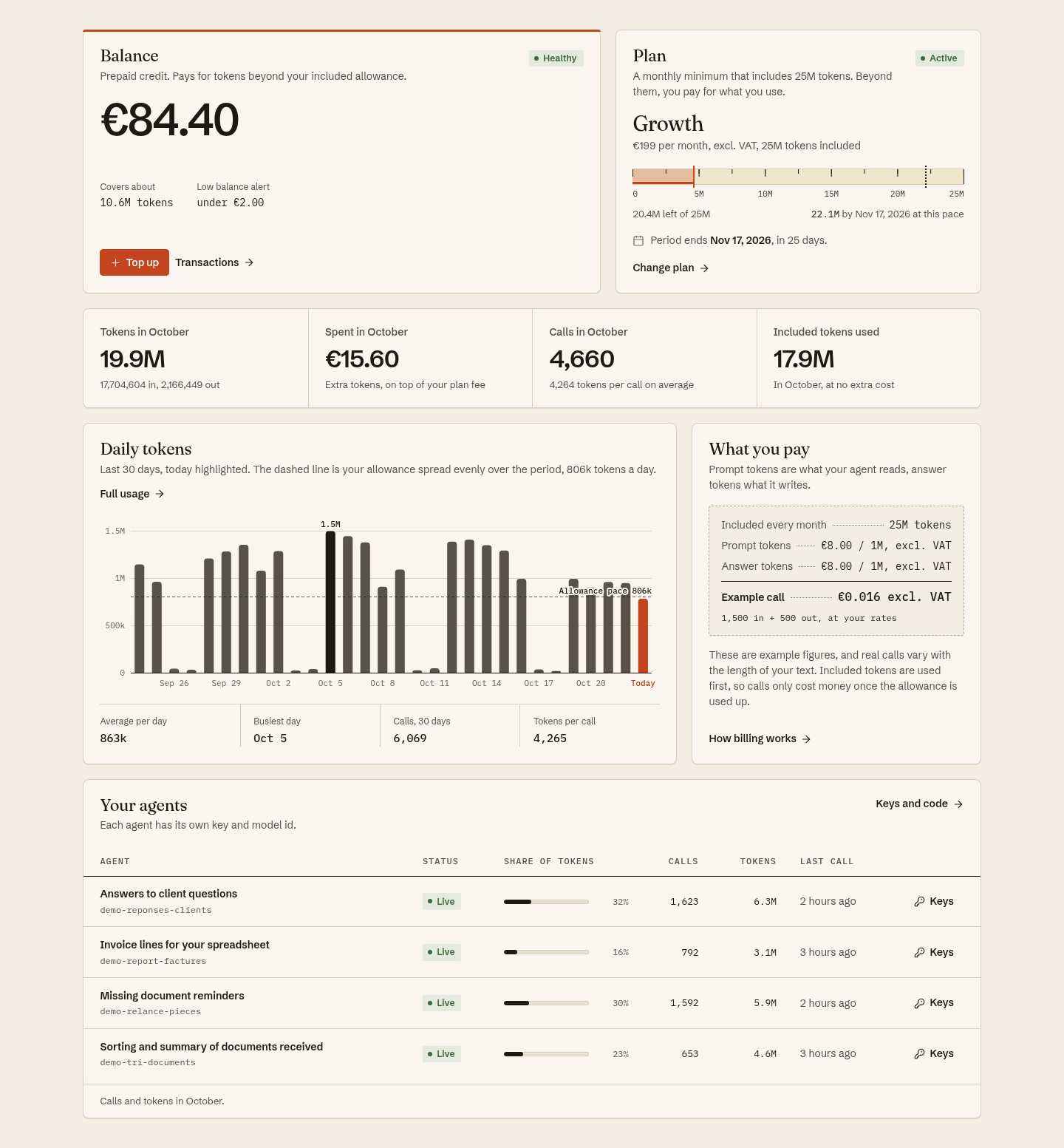
The dashboard is the home page. At the top, a greeting and, if there are any, alerts about your account. Below you find
- your account balance and its state,
- your plan and what it includes,
- the figures for the current month,
- a chart of recent activity,
- a summary of what you pay,
- the list of your agents, with their status and last call.
The top menu leads to the other pages. Dashboard, Usage, Billing, Agents and keys, Docs. The language button changes the display, the theme button switches between light and dark.
In the "Language" card, choose the language of the portal and of every email you receive, then save.
3. Follow usage
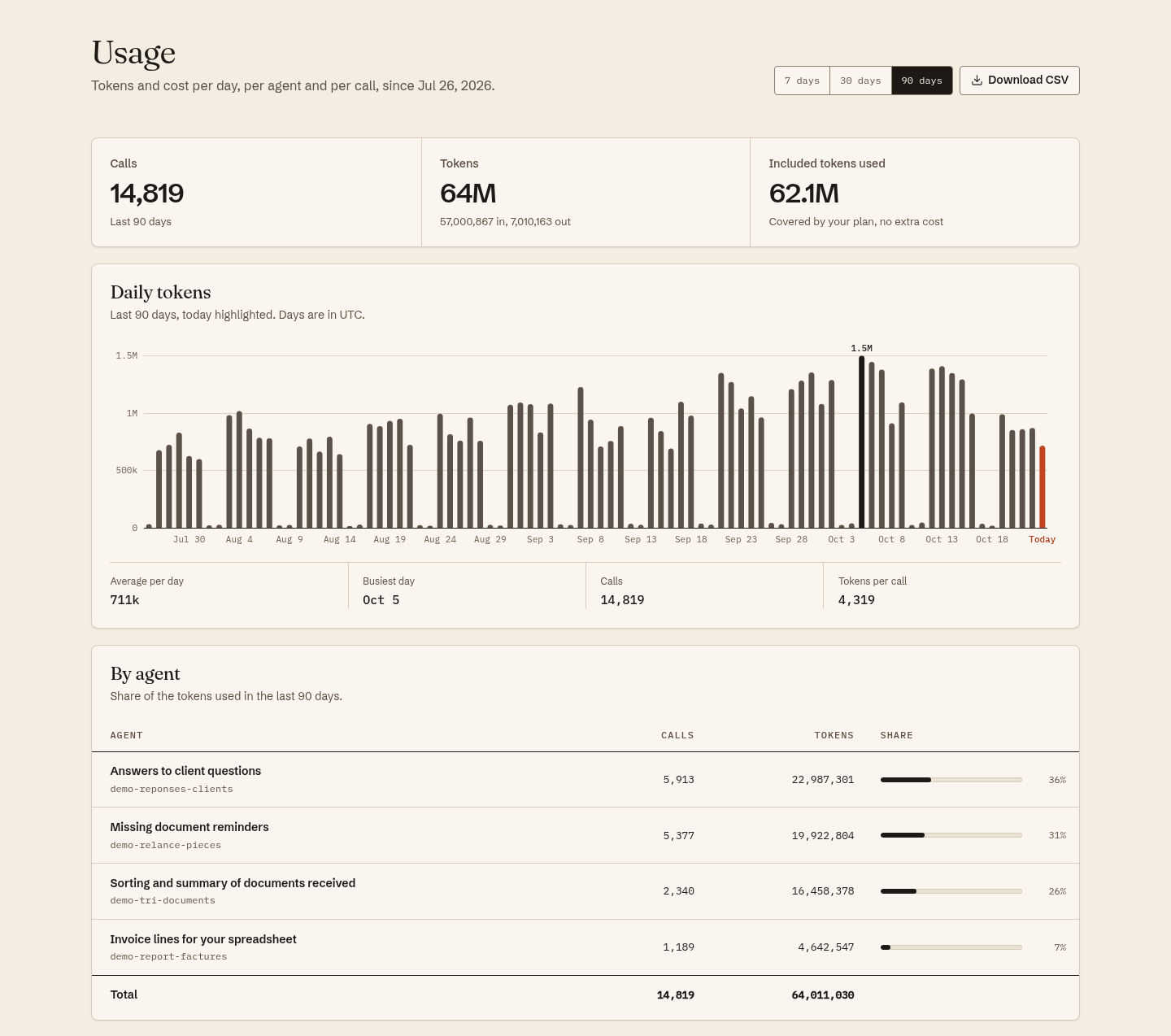
The Usage page (called Consommation in French) shows how much work your agents used. Choose the period at the top of the page.
- The key figures for the period.
- A day by day chart.
- A table by agent.
- A month by month summary.
- The list of the latest calls, with their result.
The "Download CSV" button gives a file you open in your spreadsheet. The columns are explained in the documentation page, in the usage section.
4. Billing and invoices
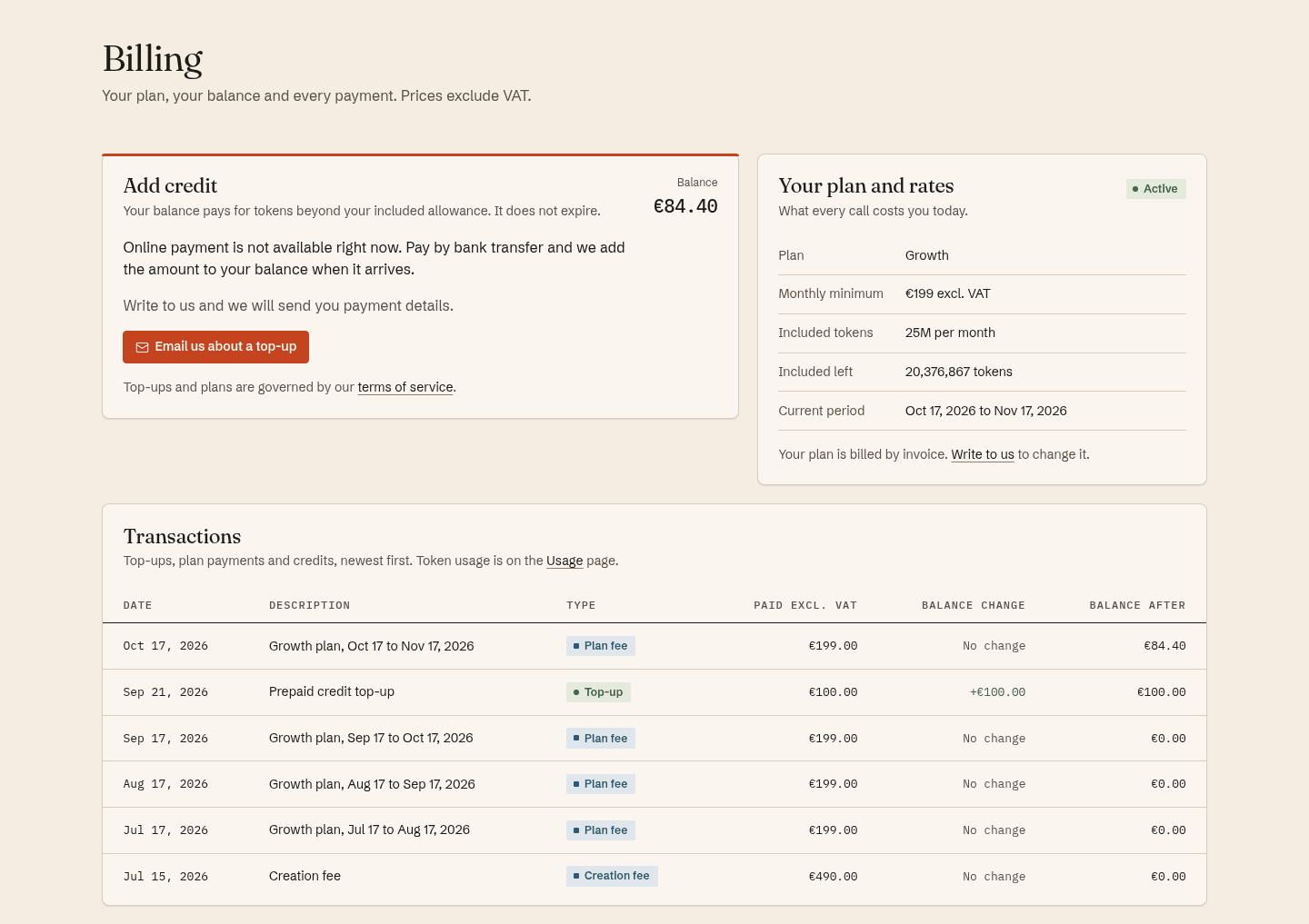
The Billing page gathers your plan, your balance and your payments. Amounts there are shown excluding VAT.
- To add credit, choose an amount, add a promo code if you have one, then continue to payment.
- To change plan, use the buttons in the grid. If switching online is not offered, the "Ask to switch" button opens a message for you to send us.
- For a top-up, "Email us about a top-up" opens a ready-to-send message.
- If your account allows online payment, the "Manage billing" button opens our payment provider's space, where you find your invoices and your payment method.
- When the table shows only the most recent transactions, the "Ask for a full statement" link under it opens a message to get the whole list.
- The transactions table lists the latest movements, with the balance after each.
5. Get help
Write to us at [email protected], or use the address shown at the bottom of every client space page. We answer in writing within one working day.
For a key, link or plan change request, write with your company name. Never send a full key by email.
6. For your developers
Your developers can connect the agent to your own tools with one HTTPS request, an automatic call from one piece of software to another. Code samples, error codes and settings are on the API and SDK page. The "Agents and keys" page of the client space gives them the connection address and the keys.